Dictate the whole thought.
Local whisper.cpp turns speech into text. Streaming mode shows words as you speak, with the unfinished tail marked separately.
/stt-record · start recording
A voice plugin for OpenCode. Dictate prompts, check transcripts, and hear coding-agent replies without leaving your terminal.
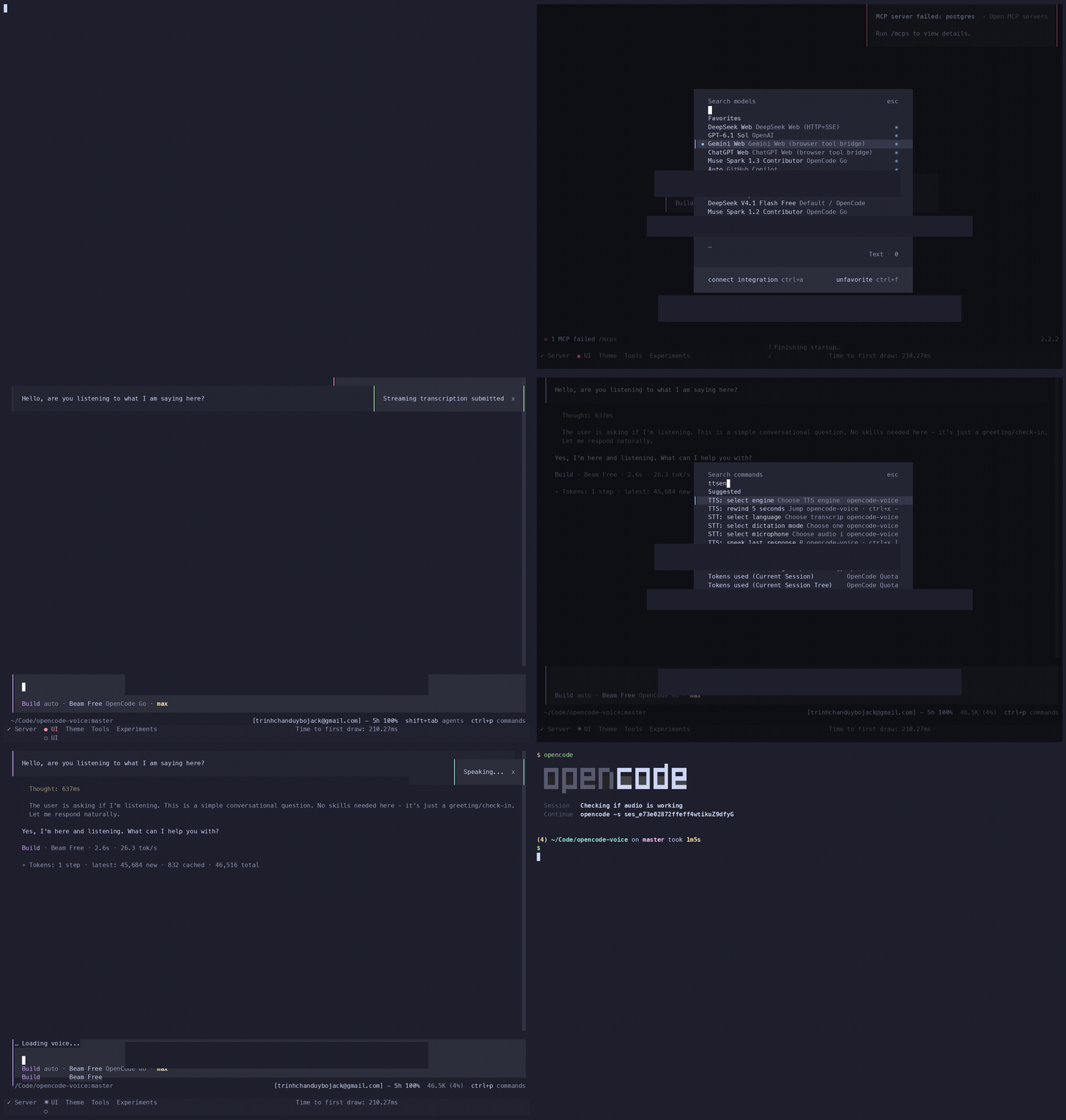
One continuous session. Your eyes stay on the code while speech moves through the same prompt-and-response loop.
Local whisper.cpp turns speech into text. Streaming mode shows words as you speak, with the unfinished tail marked separately.
/stt-record · start recording
By default, the transcript lands at your cursor as editable text. Submit it when ready; auto-submit and conversation mode are optional.
Transcript → prompt editor → you decideChoose Piper, Chatterbox, or VieNeu for speech output. Pause, replay, seek, and change playback speed from the terminal.
Piper · Chatterbox · VieNeuConversation mode listens, waits for the completed agent reply, speaks it, then listens again. Interrupt or pause whenever you need.
listen → think → speak → listenVoice controls live beside your OpenCode session. Choose the pieces that fit how you work; you do not need to use every mode.
Watch a live waveform and transcript. Pause recording, use auto-end, or submit when you choose.
Normalize code-heavy replies into speakable phrasing, then choose a local voice engine for playback.
VieNeu-TTS supports Vietnamese and English code-switching in a single utterance. Pick from 25 voices.
Route capture and playback through your own SSH audio commands when the computer's mic is not convenient.
Text normalization uses the endpoint and model you configure. The plugin does not replace your coding model or require a specific provider.
Provider names are examples, not endorsements or partnership claims. Configure an endpoint compatible with the plugin's OpenAI Chat Completions client; compatibility varies by provider.
Install the plugin in OpenCode, then configure a compatible text endpoint and your local speech tools. Full OS-specific steps and both host versions are in the setup guide.
Read the installation guide{
"plugin": [
["@bojackduy/opencode-voice", {
"endpoint": "YOUR_OPENAI_COMPATIBLE_ENDPOINT",
"model": "YOUR_MODEL"
}]
]
}Example only. Add the API key environment variable and local audio prerequisites from the guide.
Not by default. Dictation inserts editable text at your cursor. Auto-submit and conversation mode can submit as part of their configured behavior.
Default speech recognition and synthesis use local tools. Text normalization calls your configured LLM endpoint; hosted speech recognition is optional.
Conversation mode listens, waits for the completed agent turn, speaks the reply, and listens again. You can pause or interrupt it.
VieNeu-TTS supports Vietnamese and English code-switching. Available language support depends on the selected speech engine and voice.
The plugin supports OpenCode v1 and v2. See the installation guide for the config format and prerequisites for your host.
Open source voice tools for your OpenCode session. Read the setup, inspect the code, make it yours.